マックで使える製品の紹介:Hitachi Deskstar 7K1000.B 1TB (HDT721010SLA360)

Hitachi Deskstar 7K1000.B HDT721010SLA360
Mac product review

内蔵ハード・ディスク・ドライブの容量というのは幾らあっても、時が経てば、足らなくなるもの。当サイトで使う主要機器iMac 2.8 GHz Core 2 Duoに搭載されているハード・ディスク・ドライブの容量は320 GBです。この容量だと、ビデオを編集する方やBoot CampでWindows partitionを使われる方にとっては不十分でしょう。当サイトでも1ヶ月ほど前に1TBの内蔵ハード・ディスク・ドライブを購入し、iMacのフタを開けて装着しました。その内蔵ハード・ディスク・ドライブが今回紹介する日立グローバルストレージテクノロジーズ (Hitachi Global Storage Technologies) 製のDeskstar 7K1000.B 1TB (HDT721010SLA360) です。(図01参照)

Hitachi Deskstar 7K1000.B HDT721010SLA360 review
図01: 資料元 – マックハウス
  Hitachi Deskstar 7K1000.B HDT721010SLA360 review
図02: 資料元 – マックハウス

さて、元々このiMac 2.8 GHz Core 2 Duoに搭載されていたハード・ディスク・ドライブはウェスターン・デジタル (Western Digital) 製のものです。(図02参照) 容量は前述のように320 GBで、回転速度は7,200/minです。このハード・ディスク・ドライブの特徴はと言うと。。。Deskstar 7K1000.Bのものと簡単に比較してみましょう。   Continue reading

Apple Soundtrack Pro 2 Basic Training – Part 4

Soundtrack Pro video tutorial

Apple Soundtrack Pro 4 Basic Training: Part 4 – Export

Soundtrack Pro supports two main document types – Multitrack project (.stmp) and Audio file project (.stap). Choosing a wrong file type can be costly. In other words, one must choose the right file type when they start out and edit audio clips with Soundtrack Pro. Or they can end up starting over the whole thing. In the meantime, when you export a document, you might see a message window that says “The project must be flattened in order to save it as a different type.” Flatten? What does it mean?

Soundtrack Pro video tutorial   Soundtrack Pro video tutorial

We first want to see the difference between the two audio file types. We want to choose the right file type and export our audio project, which we then want to read with Final Cut Pro.   Continue reading

Apple Soundtrack Pro 2 Basic Training – Part 3

Soundtrack Pro video tutorial

Apple Soundtrack Pro 2 Basic Training: Part 3 – Effects

In the third video tutorial of the Soundtrack Pro Basic Training series, we first import a Windows Media Audio file to Soundtrack Pro. The goal of this tutorial is to learn how to apply effects to audio tracks. And we want to change the pitch of the voice in the audio file.   Continue reading

Tom Clancy’s HAWX with Boot Camp – Tom Clancy’s HAWX Game Play Video Part 1 – 17 Minutes

Tom Clancy's HAWX Ubisoft Mac Boot Camp

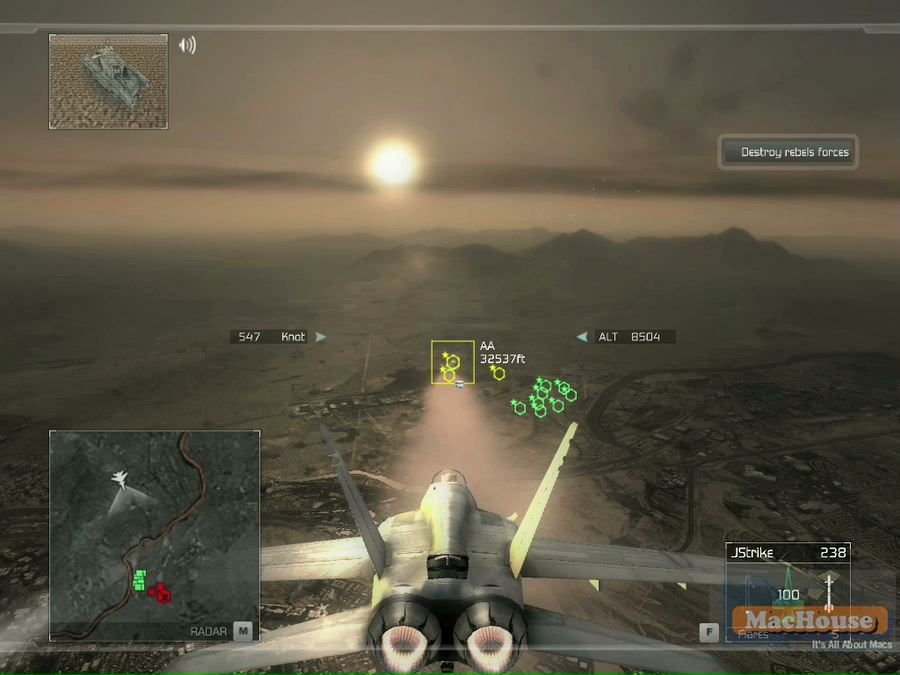
Tom Clancy’s HAWX is the latest PC game release from Ubisoft. It was developed by Ubitsoft’s game studio in Romania. Tom Clancy’s HAWX is also available for X360 and PS3. It will soon be available for Wii.

More than a month ago, Ubisoft published Tom Clancy’s EndWar. Two game titles both come with Tom Clancy’s. But Tom Clancy’s HAWX is a totally different game. It’s a real-time air combat game. And you will get to control an air combat fighter to attack land buildings/vehicles and shoot down enemy aircrafts.

Tom Clancy's HAWX Ubisoft Mac Boot Camp Tom Clancy's HAWX Ubisoft Mac Boot Camp

In this game, you will play the character of David A. Crenshaw, an Air Force major who is assigned to the 16th Fighter Squadron of Langley Air Force Base. He is an honor graduate of the U.S. Air Force Academy in 1999. In April, 2006, the Department of Defense transfers Crenshaw to High Altitude Warfare-Experimental (HAWX) squadron.   Continue reading

Installing Mac OS X 10.5 Leopard on External Hard Disk Drive

Mac OS X Core 2 Duo 2.8 GHz 24 inch icon

We purchased a new FireWire-connected hard disk drive case yesterday. We now have four external drive cases. We notice that some people are interested in knowing whether it’s possible to install Mac OS on a particular external hard disk drive. If it’s a USB-powered disk drive, the answer is flatly no. So one necessary (but not sufficient) qualification for the drive to be used as Mac OS startup drive is having a FireWire connection port.

how to install Mac OS on external hard disk drive
Screenshot 01 –
Source: MacHouse
  how to install Mac OS on external hard disk drive
Screenshot 02 –
Source: MacHouse

So we’ve tried installing Mac OS X 10.5 on this new hard disk drive case, which has both FireWire and USB ports. It doesn’t take a 15-year Mac veteran to figure out that the first step is to insert an OS startup DVD to the computer. Then I need to use the Startup Disk pane to select the installation disc and click on the restart button. (See Screenshot 01.) The target drive is named ‘160 GB.’ When the iMac starts up on the installation disc, I see the ‘Select a Destination’ screen. We know that Mac OS can only be installed on a volume with a downward-looking, yellow-green arrow. Looking at the computer screen, it doesn’t look like we can install Mac OS X 10.5 on 160 GB. (See Screenshot 02.)   Continue reading